All guides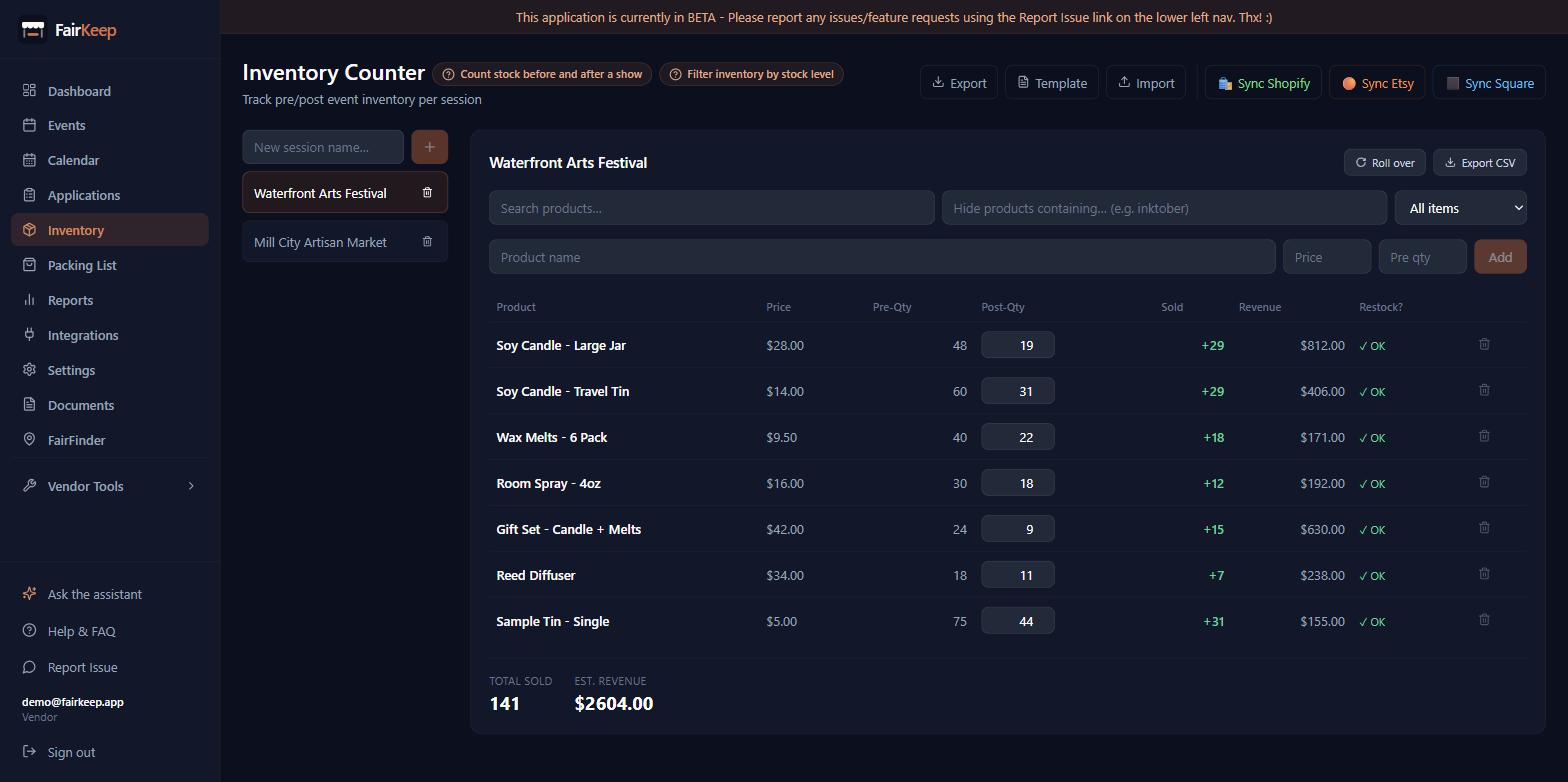
Events & Tracking
Count stock before and after a show
Count what you take to a market and what comes home, and FairKeep works out what sold, what it earned, and what needs restocking.
- 1Go to Dashboard → Inventory. Everything here is organised into sessions — one per show, so last weekend's counts stay separate from this weekend's.
- 2Type a name in "New session name…" and click + to start one. Naming it after the event makes it easy to find later.
- 3Add what you are taking: product name, price, and Pre-Qty (how many you are packing). Press Enter to add each one.
- 4Selling on Shopify or Square? Use "Sync from Shopify" or "Sync from Square" instead of typing — it imports your products with their prices. You can filter by product status, stock location, and exclude free items.
- 5Go and do the show.
- 6Afterwards, come back to the session and fill in Post-Qty for each product — how many came home. It saves as soon as you click away.
- 7Sold and Revenue fill themselves in per product, and Total Sold and Est. Revenue appear at the bottom once you have entered any post-show count.
- 8The Restock? column flags anything that came home below the session's restock threshold, so your restock list writes itself.
- 9Use the search box and the stock-level filter to narrow a long list — see "Filter inventory by stock level".
- 10Synced a whole shop and only carry part of it? Type into "Hide products containing…" — "inktober", or several separated by commas — and anything matching disappears from the counter. It is saved, so it is still hidden next time you open it, and Clear brings everything back.
Related guides
Filter inventory by stock level
Quickly find out-of-stock or low-stock items before a show using FairKeep's inventory search and stock level filters.
Sync Shopify products to inventory
Import your Shopify products into FairKeep's inventory counter for pre/post event tracking.
Track your first event
Learn how to log an event in FairKeep — from entering the show details before the event to filling in income and expenses afterwards.